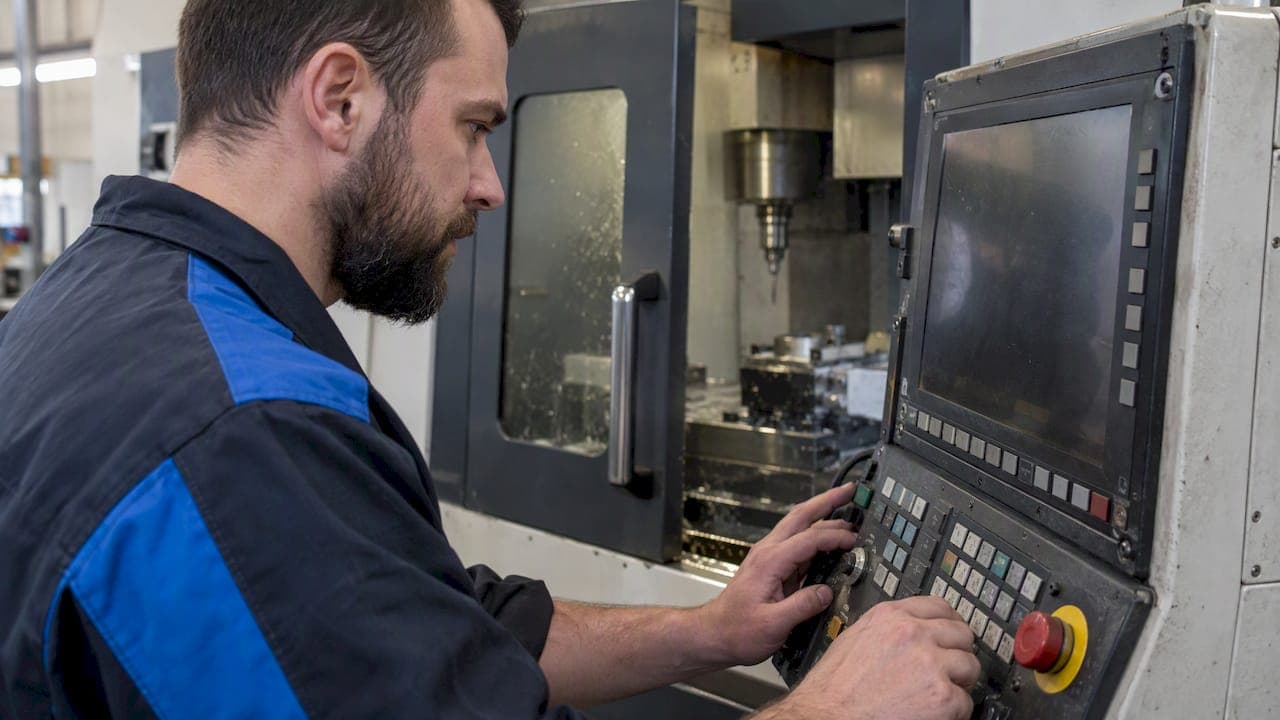
The fastest way to stop a G-code fault and find its root cause is to secure the machine, capture the exact controller message and line number, then run a structured isolation loop: check syntax, confirm modal state, verify offsets, and simulate the suspect block before resuming. This guide walks through that checklist, lists common error fixes, shares a safe-start preamble, and covers prevention steps that cut repeat faults.
TL;DR:
- After a hard limit trip, rehome before resuming; a soft limit alarm points to a programmed move beyond configured travel.
- A maximum step rate alarm directs checks toward steps per millimeter, pulse length, or commanded speed, rather than toward the G code itself.
- For arc faults, verify plane, distance mode, and endpoints; IJK center vectors avoid the rounding ambiguity that can affect R format arcs.
- Test new safe start preambles in single block mode, then dry run the full program; preambles cannot fix wiring, sensor, or crash damage.
Table of Contents
- Quick troubleshooting checklist for the first minute after a fault
- Step-by-step workflow for isolating the root cause
- Common error messages and what to check first
- Modal groups and a safe-start preamble that forces a known state
- Arc, radius, and probe errors: causes and fixes
- Prevention: simulation, lead-ins, and preflight habits
- How Availzye Machinist Pro fits into this workflow
- A shop-floor view on debugging as trace-back
- Try Availzye Machinist Pro for faster, cleaner troubleshooting
- FAQ
- Sources
Quick troubleshooting checklist for the first minute after a fault
Every second after an alarm matters less than getting the right information before you touch anything else. Follow this order before you clear a single fault:
- Hit E-stop or confirm the alarm state, then leave the machine exactly where it stopped.
- Write down the controller's error text and the program line number it points to.
- Visually check the tool, workpiece, clamps, and coolant lines for crash damage or obstruction.
- Switch to single-block or dry-run mode and replay only the suspicious segment.
- Confirm units (G20 or G21), that feed rates are present where required, and which mode the machine is in.
This sequence keeps you from clearing an alarm and rerunning blind, which is how a small syntax error turns into a broken tool or a scrapped fixture.
Step-by-step workflow for isolating the root cause
Once the machine is stable, move from symptom to cause with a repeatable process rather than guesswork.
- Identify: record the exact controller message, the program block, and the machine's state (position, mode, active tool) at the moment of failure.
- Check syntax: look for unsupported codes, missing parameters, or values outside the controller's accepted range, referencing the G-code quick reference table for valid commands and common error conditions.
- Check modal state: confirm distance mode (G90/G91), active plane, cutter compensation, feed mode, and the active coordinate system.
- Check tool and offsets: verify tool length offset (G43/G49), the correct tool number is loaded, and the right work offset (G54 through G59) is active.
- Simulate and single-step: replay the line in simulation or single-block mode, changing one variable at a time so you know exactly which change fixed the fault.
- Recover safely: re-home or re-zero the machine when the fault involved a lost position reference before resuming the cut.
Pro Tip: Change only one variable per test pass. Fixing two suspected causes at once hides which one actually mattered.
This loop treats the controller's error message as a starting clue, not the full diagnosis. A "bad circle" alarm, for example, is really a symptom of a radius or distance-mode mismatch further back in the code, and tracing it block by block is what actually finds the cause.

Common error messages and what to check first
Controller alarms tend to fall into a short list of repeat offenders. Knowing which check to run first saves time on the shop floor.
- Soft limit vs. hard limit: a soft limit means the program asked for a position beyond the configured travel; a hard limit means a physical switch tripped. Alarm and error code references recommend re-homing after any hard limit before resuming work.
- Unknown or out-of-range G-code: verify the command against your controller's supported list and remove anything it does not recognize, since an unsupported G-code will halt the program outright.
- I/J/K with no G2/G3, or a missing feed rate: these are two of the most frequent syntax errors documented in controller references, and both are fixed by adding the missing word to the block.
- Modal-group violations or line-too-long errors: break a dense block into two simpler statements instead of stacking multiple modal commands in one line.
- Probe failures: check that the probe input is configured and wired correctly, and confirm the signal with a manual test cycle before blaming the program.
Numeric alarm codes map directly to specific causes: FluidNC's alarm and error code list documents codes such as a max step rate exceeded alarm, which points operators toward checking steps per millimeter, pulse length, or commanded speed rather than the G-code itself.
Modal groups and a safe-start preamble that forces a known state
Modal commands stay active until explicitly changed, which means a setting left over from a previous program can silently carry into the next one. That persistence is exactly what causes "it worked yesterday" failures.
A tested preamble forces every critical mode back to a known baseline before the first cutting move runs, and the LinuxCNC G-code overview documents a standard example for this purpose.
| Code | What it forces |
|---|---|
| G17 | Selects the XY plane |
| G20 | Sets inch units |
| Cancels cutter compensation | Cancels cutter compensation |
| G49 | Cancels tool length offset |
| G54 | Selects work coordinate system 1 |
| Cancels any active canned cycle | Cancels any active canned cycle |
| G90 | Sets absolute distance mode |
| G94 | Sets feed per minute mode |
- Test a new preamble in single-block mode first, then dry-run the full program before letting it run at speed.
- A preamble only fixes modal-state problems; a failure caused by worn wiring, a bad sensor, or a mechanical crash needs a hardware check, not a code change.
Arc, radius, and probe errors: causes and fixes
Arc moves and probe cycles cause a disproportionate share of G-code faults because small rounding or configuration errors compound quickly.
- IJK center-point vectors are generally more precise than an R value for arcs, since R-based arcs can round ambiguously on certain radii and arc spans.
- When an arc error shows up, check plane selection (G17, G18, or G19), confirm distance mode (G90/G91), and verify the arc's start and end points actually sit on the specified radius, a pattern the Fadal troubleshooting manual ties directly to "Bad Circle" and "Calculated Radius Error" messages.
- For probe failures, confirm the probe input is configured in the controller, send a manual test signal, and review how the G38.n probing command is written in the block that failed.
- When a post-processor is the source of repeat arc errors, increasing numeric precision or switching the output from R to IJK format is a reliable practitioner-level fix.
Prevention: simulation, lead-ins, and preflight habits
Most crashes trace back to a check that got skipped, not a mystery bug. A few habits catch the majority of faults before they reach the spindle.
- Run production-critical programs through simulation first; it catches over-travel and tool-path collisions a visual read-through misses.
- Program a linear lead-in before engaging cutter compensation on a contour, since the controller needs that straight segment to compute the offset vector cleanly.
- Standardize a preflight routine: confirm units, confirm offsets, enforce the safe-start preamble, and archive the verified version of the program.
- Keep a short post-run log noting any anomaly, even a minor one, so a pattern shows up before it becomes a repeat crash.
Pro Tip: A one-line note in a post-run log ("spindle hesitated at block 220") is often the detail that solves next week's fault in minutes instead of hours.
How Availzye Machinist Pro fits into this workflow
Our G-code analysis tool flags unsupported commands and modal-group conflicts before a program ever reaches the machine, which covers the syntax-check step directly. A GCode Generator can build safe-start preambles and standard lead-ins so you are not typing them from memory every time.
- Catch syntax and modal issues during review instead of at the controller.
- Generate a verified safe-start preamble and lead-in in one step.
- Job and maintenance trackers can enforce preflight checks and log recurring faults for process improvement.
- Pull ready-made safe-start G-code templates and a G-code basics refresher when you need a quick reference.
A shop-floor view on debugging as trace-back
Most alarms are symptoms, not root causes. The real fix comes from tracing the machine's state back to the exact line and mode active at failure, not from clearing the alarm and hoping. Keep programs versioned, run the preflight checklist every time, and report near-misses even when nothing breaks. That habit is what raises a shop's overall standard, one caught mistake at a time.
— Availzye
Try Availzye Machinist Pro for faster, cleaner troubleshooting
Every step in this checklist, from catching a bad modal state to building a safe-start preamble, gets faster when the tools are built for it. A GCode Generator can produce verified preambles and lead-ins quickly, and G-code analysis can catch unsupported commands before they cost you a tool.

- Start with our Individual, Small Shop, or Team plan, each with a 7-day free trial.
- Generate a safe-start preamble instantly with the GCode Wizard.
- Pair troubleshooting with root-cause tracking using proven lean analysis tools for recurring shop issues.
Pick the plan that matches your shop size and start your trial today.
FAQ
What does G-code mean on a CNC machine?
G-code is the programming language that tells a CNC machine's controller exactly how to move: which path to follow, at what speed, and in which mode. Each line, or block, contains commands the controller reads and executes in sequence, as documented in the LinuxCNC G-code overview.
What is G94 in G-code?
G94 sets the machine to feed-per-minute mode, meaning the programmed feed rate is interpreted as distance per minute rather than per spindle revolution. It is one of the modal commands included in a standard safe-start preamble to avoid feed-mode confusion between programs.
What is a G90 G-code command?
G90 sets absolute distance mode, so every coordinate in the program refers back to a fixed origin point rather than the previous position. This is one of the modal states worth confirming any time a program behaves unexpectedly, since a leftover G91 (incremental mode) from a prior program is a common source of unexpected moves.
What does G04 mean in G-code?
The G04 command pauses program execution for a set time without moving any axis, often used to let the spindle reach full speed or coolant settle before cutting.
Sources
- LinuxCNC: G-code reference (quick table and common errors)
- FluidNC: Alarm and error codes
- Fadal troubleshooting manual (ITSCNC PDF)